How do you work when your work requires typing but you can’t type much, or you can’t type at all with one hand? The answer is to talk to your computer and have it type your words. Here’s my experience with voice to text.
As a writer and content developer, typing is essential. Unfortunately, there have been two times when I haven’t been able to use both hands to type. The first time was several years ago when I fractured and dislocated my right wrist and needed surgery to repair it. The second time was this year (2026) when I had both carpal tunnel and trigger finger surgery on my left hand.
Both times I discovered the solution—or partial solution —is to talk to my computer using Voice to text tools I already own. In fact, I used voice to text as I wrote this article.
Free Speech Recognition Tools
I didn’t have to buy anything new to use my Windows computer and Android smart phone to convert speech to text. Windows and Microsoft Office include dictation features that you can use to create documents and emails by speaking instead of typing. You can also use voice to text in search, in AI chat bots like Gemini and ChatGPT, in Google Docs, and in Gmail.
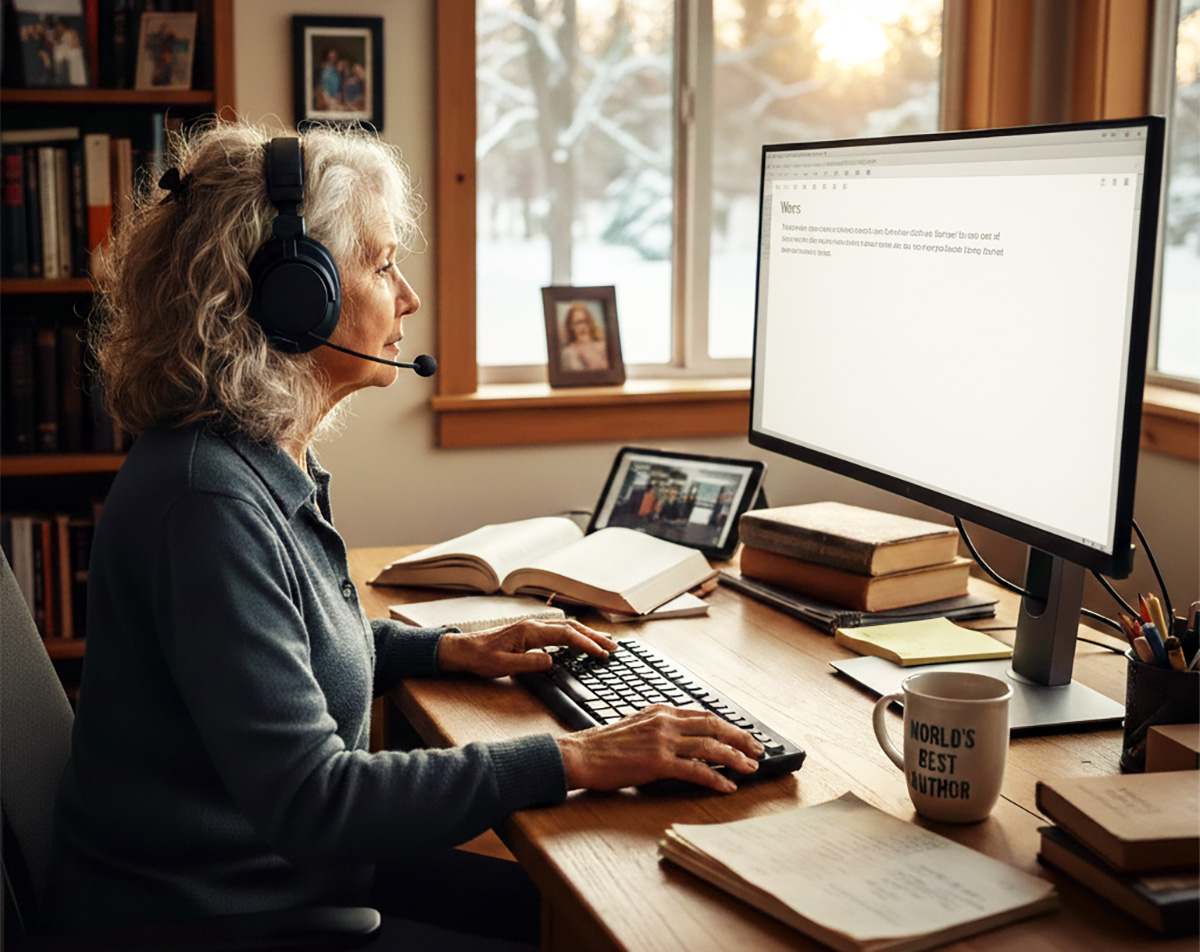
My laptop computer has a built-in microphone that works well for dictating text. But most of the time I use my desktop computer. The desktop doesn’t have a built-in mic, so for voice input on that, I use a headset and mic that I’ve had for several years. Mine is an older version of this inexpensive Razer gaming headset and mic.*
How Well Does Voice to Text Work?
The voice to text is amazingly accurate. Here’s an example of how quickly voice gets translated to text. This brief example also shows how the software (Microsoft Word, in this case) interprets what I’m dictating and does a little backtracking to turn spoken commands into actions. (Click the white arrow by the time line to start the video.)
How to Use Voice to Text
As long as you have a microphone turned on (either built in or attached to the computer), converting your speech to text is easy.
If you’re using a Windows computer, you can use dictation any place there’s a text input box. Whether you’re using email, a word processing program, search, social media, etc., all you have to do is put your cursor in a text entry field and press the Windows key and the letter H.
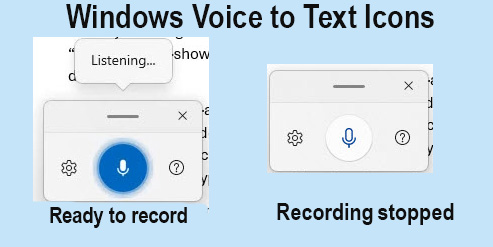
A little box with a microphone symbol will show up towards the bottom of your screen. The microphone will be bright blue when it’s ready for you to dictate. You may also see the word, “Listening.”
After you stop speaking for a while, or manually type something, the mic stops recording and the color changes to white. Clicking the microphone icon starts the recording again.
Alternately, look for and click on a microphone icon in whatever software or browser you’re using. You’ll find it on the toolbar in Microsoft Word, and in the Google search box in Chrome, and in query boxes in AI generative chat bots. In Google Docs, you can hold down the control and the shift key and press S on Windows computers. Or you can go to the Tools menu and choose Voice Typing to start dictating what you want to write.
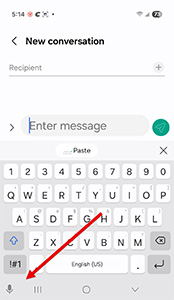
If you’re using an Android phone and want to dictate your social media posts or a text messages, look for a tiny microphone symbol on the very bottom of your screen (below the keyboard letters).
You can also turn your words into text by dictating to a Macintosh computer. You can find a good explanation of how to do that in this video on the Mac Most website. (I don’t own a Macintosh).
Can Speech to Text Eliminate Typing Completely?
As good as the voice to text is, unless you’re using special adaptive software, you’ll still need to use at least one hand to type and edit a little bit.
That’s because you’re likely to want to make some changes to the words that you’ve spoken.
I find that writing and talking are two different skills. When I talk, I’m less precise than when I write. I say the words that come to mind, and those words can tumble out pretty quickly. But they’re not always the best way to express a thought or an idea I want to set down in writing.
When I write, I want to be sure the words on the page are clear, precise and easy to understand. I also want each sentence to be grammatically correct.
So, I tend to backup, revising and editing the words in each sentence as I go along. Then when I finish whatever I’m writing, I go back and edit and rewrite it again.
You can’t do that type of backtracking and revision with simple dictation tools. To polish what I’ve dictated, I need to use one hand to put my cursor at the spot in the text where I want to make a change or add a punctuation mark that I forgot to dictate. I also need to use a mouse to click the microphone icon to start and stop recording.
Nevertheless, using dictation works out well when I can’t touch type with two hands. I can finish a blog post much more quickly than if I try to type with just one hand. It’s also helping me to be more precise as I speak. Voice to text captures and types all the “ums” and “uhs” I utter when I’m trying to think of the next words I want to say. I’m learning to eliminate those meaningless filler words as I speak, so I don’t have to go back and delete them from sentences.
I’ll probably go back to typing everything instead of dictating as soon as my hand heals. But talking to my computer and smartphone has been fun and has allowed me to get some work done while I’m recuperating.
Woman with headset Image source: Gemini
*This page contains an affiliate link from which we may make a commission if you make a purchase through the link. Learn more.